Apple iPad Air (5th Gen), 256GB Wi-Fi, Grey - 95281
Model: Apple iPad Air (5th Gen)
Status: Original
Condition: Minor Dent
Colour: Grey
Grade: B
Warranty: 1 Month
Returns: 10 days money back guarantee

-
Highlights
- Equipped with a high-resolution camera for capturing detailed images
- Offers an extensive battery life for prolonged usage without frequent charging
- Features a vibrant Liquid Retina Display with a resolution of 2360x1640 pixels
- Includes a powerful Apple M1 chip for enhanced performance and efficiency
- Provides ample storage capacity with 256GB of internal memor
Capacity
-
64GB
-
256GB
Size and Weight
-
Wi-Fi models
-
Height: 9.74 inches (247.6 mm)
-
Width: 7.02 inches (178.5 mm)
-
Depth: 0.24 inch (6.1 mm)
-
Weight: 1.02 pounds (461 grams)
-
Wi-Fi + Cellular models
-
Height: 9.74 inches (247.6 mm)
-
Width: 7.02 inches (178.5 mm)
-
Depth: 0.24 inch (6.1 mm)
-
Weight: 1.02 pounds (462 grams)
Buttons and Connectors
-
Front camera
-
Top button/Touch ID
-
Volume buttons
-
Rear camera
-
Smart Connector
-
USB-C connector
Display
-
Liquid Retina display
-
10.9-inch (diagonal) LED‑backlit Multi‑Touch display with IPS technology
-
2360-by-1640-pixel resolution at 264 pixels per inch (ppi)
-
Wide color display (P3)
-
True Tone display
-
Fingerprint-resistant oleophobic coating
-
Fully laminated display
-
Antireflective coating
-
1.8% reflectivity
-
500 nits brightness
-
Supports
-
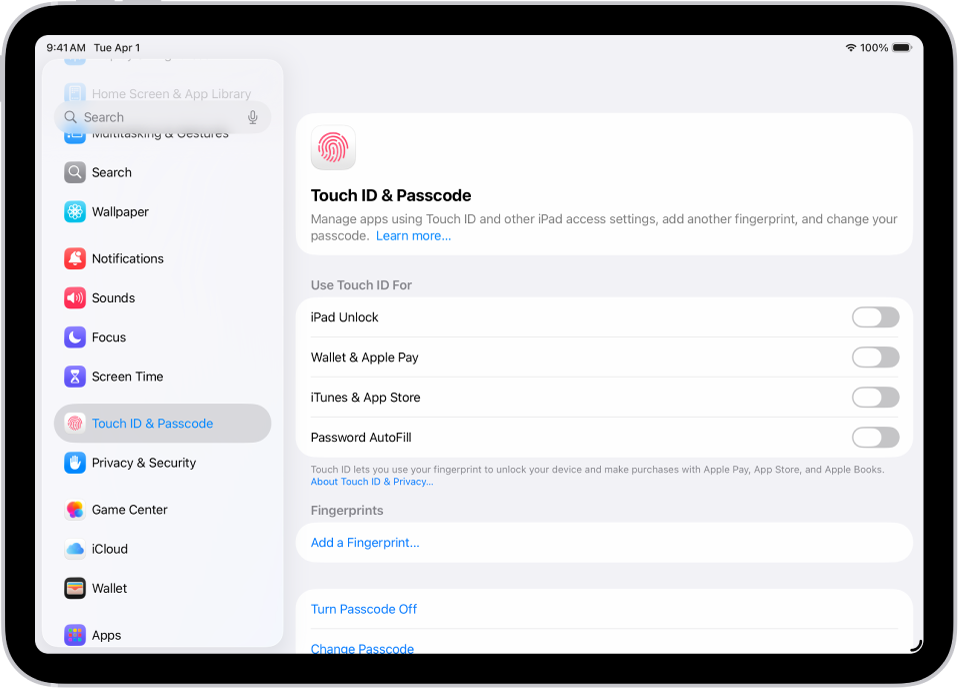
Set up Face ID: Go to Settings , tap Face ID & Passcode, tap Set up Face ID, then follow the onscreen instructions.
-
Set up Touch ID: Go to Settings , tap Touch ID & Passcode, tap Add a Fingerprint, then follow the onscreen instructions.
Chip
Apple M1 chip
-
8-core CPU with 4 performance cores and 4 efficiency cores
-
8-core GPU
-
16-core Neural Engine
-
8GB RAM
Media engine
-
Hardware-accelerated H.264 and HEVC
-
Video decode engine
-
Video encode engine
Setup basics
Transfer your apps and info onto your new iPad
When you first turn on your iPad and begin the setup process, you can wirelessly transfer many of your apps, settings, and content from your previous iPad directly to your new iPad—just bring the two devices close together, then follow the onscreen instructions.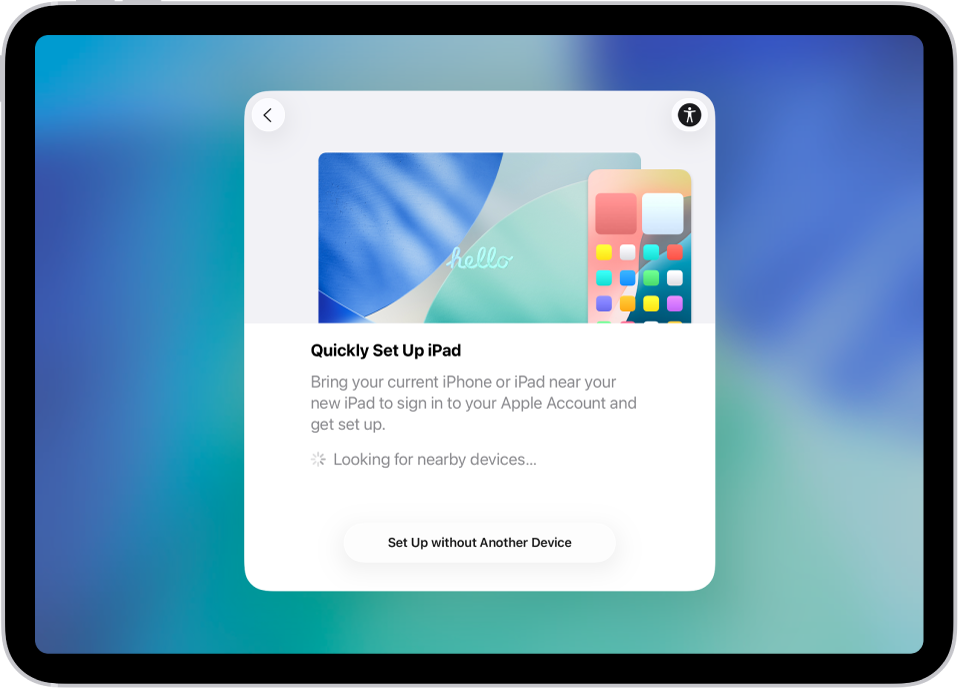
Connect to Wi-Fi and set up cellular service
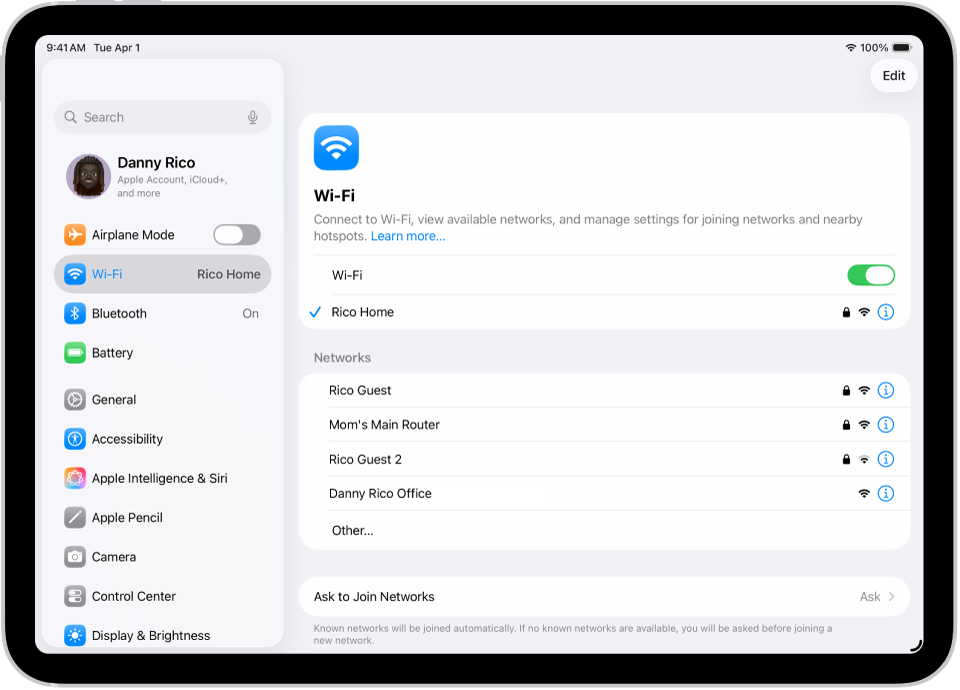
To connect your iPad to your home Wi-Fi network, go to Settings, tap Wi-Fi, turn on Wi-Fi, then choose your network. iPad automatically connects to your Wi-Fi network whenever you’re home.
Sign in to your Apple Account
You use your Apple Account to access Apple services such as the App Store, the iTunes Store, Apple Books, Apple Music, FaceTime, iCloud, iMessage, and more.
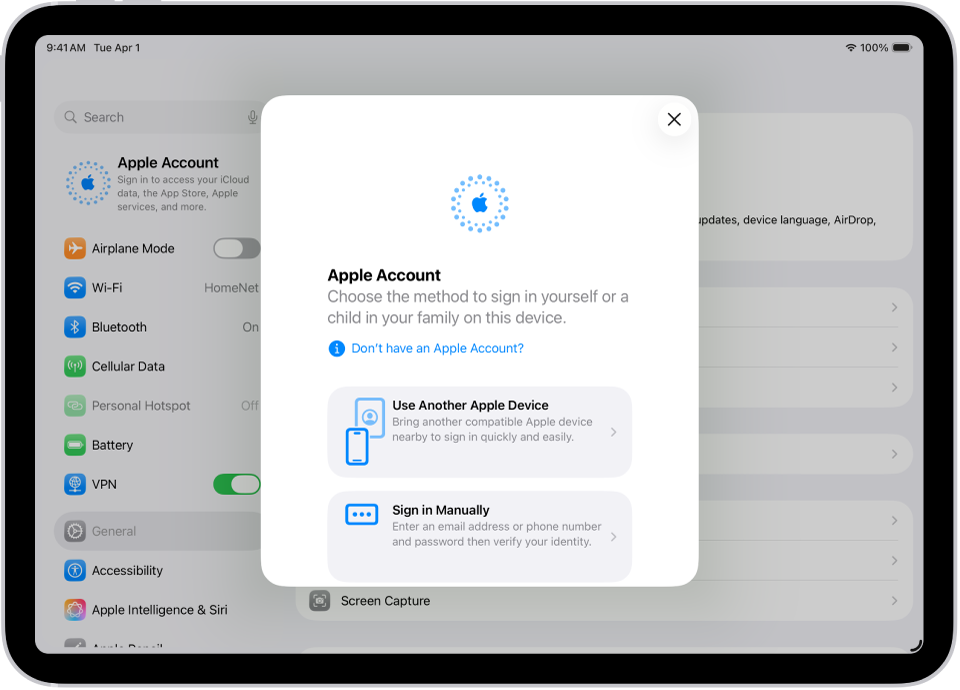
To sign in to your Apple Account, go to Settings , tap Apple Account. If you have an iPhone (with iOS 17 or later) or another iPad (with iPadOS 17 or later), you can simply bring your iPad near your other device. Otherwise, you can manually sign in. To verify that you’re signed in, go to Settings , tap your name; your Apple Account appears below your name.
Set up Face ID or Touch ID
You can use Face ID (face recognition) or Touch ID (your fingerprint), to securely unlock your iPad, sign in to many apps, and make purchases. For your security, Face ID and Touch ID data doesn’t leave your device and isn’t saved anywhere else.
Depending on your iPad model, do one of the followin
-
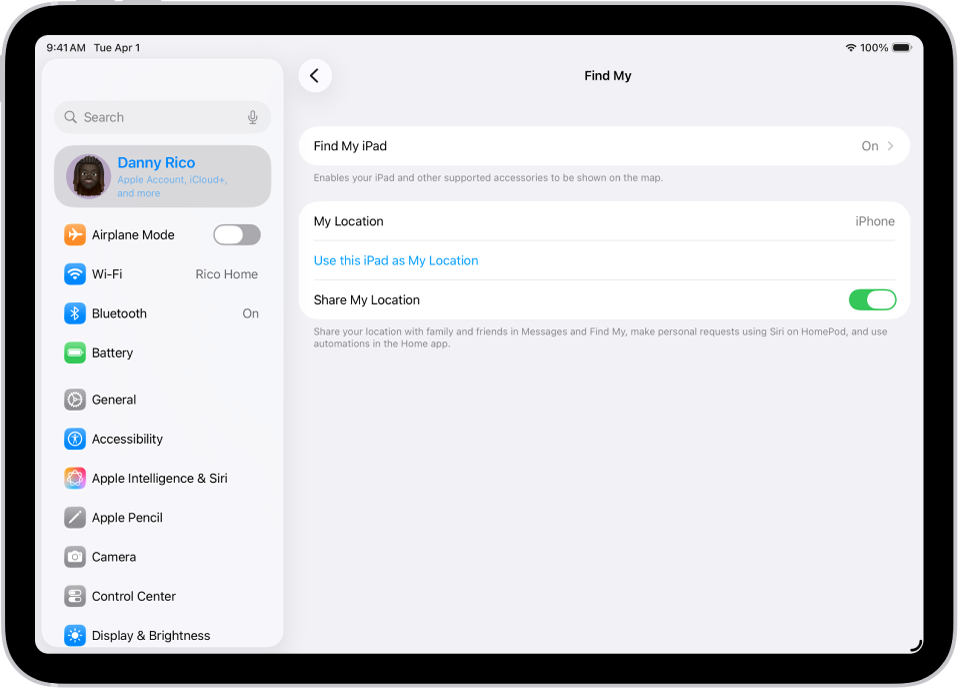
Turn on Find My iPad
You can locate your iPad if it’s ever lost or stolen.
Go to Settings tap your name, tap Find My, tap Find My iPad, then turn on Find My iPad.
You can see the location of your devices in the Find My ap. If you lose your iPad and don’t have access to the Find My app, you can locate your device using Find Devices on iCloud.com.
Store your data in iCloud
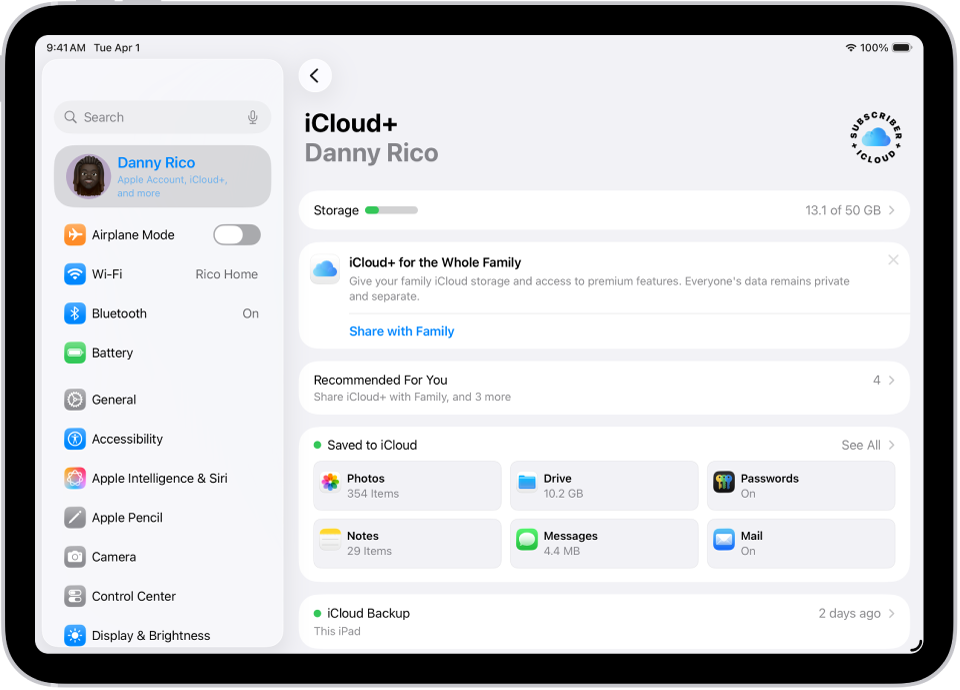
iCloud helps you keep your important info safe and in sync across your devices. If you replace or lose your iPad, or it’s damaged or stolen, your photos, videos, backups, and more remain secure in iCloud.
To turn on or change the features you want to use with iCloud, go to Settings, tap your name, then tap iCloud.
Original: $485.77
-65%$485.77
$170.02Product Information
Product Information
Shipping & Returns
Shipping & Returns
Description
Model: Apple iPad Air (5th Gen)
Status: Original
Condition: Minor Dent
Colour: Grey
Grade: B
Warranty: 1 Month
Returns: 10 days money back guarantee
-
Highlights
- Equipped with a high-resolution camera for capturing detailed images
- Offers an extensive battery life for prolonged usage without frequent charging
- Features a vibrant Liquid Retina Display with a resolution of 2360x1640 pixels
- Includes a powerful Apple M1 chip for enhanced performance and efficiency
- Provides ample storage capacity with 256GB of internal memor
Capacity
-
64GB
-
256GB
Size and Weight
-
Wi-Fi models
-
Height: 9.74 inches (247.6 mm)
-
Width: 7.02 inches (178.5 mm)
-
Depth: 0.24 inch (6.1 mm)
-
Weight: 1.02 pounds (461 grams)
-
Wi-Fi + Cellular models
-
Height: 9.74 inches (247.6 mm)
-
Width: 7.02 inches (178.5 mm)
-
Depth: 0.24 inch (6.1 mm)
-
Weight: 1.02 pounds (462 grams)
Buttons and Connectors
-
Front camera
-
Top button/Touch ID
-
Volume buttons
-
Rear camera
-
Smart Connector
-
USB-C connector
Display
-
Liquid Retina display
-
10.9-inch (diagonal) LED‑backlit Multi‑Touch display with IPS technology
-
2360-by-1640-pixel resolution at 264 pixels per inch (ppi)
-
Wide color display (P3)
-
True Tone display
-
Fingerprint-resistant oleophobic coating
-
Fully laminated display
-
Antireflective coating
-
1.8% reflectivity
-
500 nits brightness
-
Supports
-
Set up Face ID: Go to Settings , tap Face ID & Passcode, tap Set up Face ID, then follow the onscreen instructions.
-
Set up Touch ID: Go to Settings , tap Touch ID & Passcode, tap Add a Fingerprint, then follow the onscreen instructions.
Chip
Apple M1 chip
-
8-core CPU with 4 performance cores and 4 efficiency cores
-
8-core GPU
-
16-core Neural Engine
-
8GB RAM
Media engine
-
Hardware-accelerated H.264 and HEVC
-
Video decode engine
-
Video encode engine
Setup basics
Transfer your apps and info onto your new iPad
When you first turn on your iPad and begin the setup process, you can wirelessly transfer many of your apps, settings, and content from your previous iPad directly to your new iPad—just bring the two devices close together, then follow the onscreen instructions.Connect to Wi-Fi and set up cellular service
To connect your iPad to your home Wi-Fi network, go to Settings, tap Wi-Fi, turn on Wi-Fi, then choose your network. iPad automatically connects to your Wi-Fi network whenever you’re home.
Sign in to your Apple Account
You use your Apple Account to access Apple services such as the App Store, the iTunes Store, Apple Books, Apple Music, FaceTime, iCloud, iMessage, and more.
To sign in to your Apple Account, go to Settings , tap Apple Account. If you have an iPhone (with iOS 17 or later) or another iPad (with iPadOS 17 or later), you can simply bring your iPad near your other device. Otherwise, you can manually sign in. To verify that you’re signed in, go to Settings , tap your name; your Apple Account appears below your name.
Set up Face ID or Touch ID
You can use Face ID (face recognition) or Touch ID (your fingerprint), to securely unlock your iPad, sign in to many apps, and make purchases. For your security, Face ID and Touch ID data doesn’t leave your device and isn’t saved anywhere else.
Depending on your iPad model, do one of the followin
-
Turn on Find My iPad
You can locate your iPad if it’s ever lost or stolen.
Go to Settings tap your name, tap Find My, tap Find My iPad, then turn on Find My iPad.
You can see the location of your devices in the Find My ap. If you lose your iPad and don’t have access to the Find My app, you can locate your device using Find Devices on iCloud.com.
Store your data in iCloud
iCloud helps you keep your important info safe and in sync across your devices. If you replace or lose your iPad, or it’s damaged or stolen, your photos, videos, backups, and more remain secure in iCloud.
To turn on or change the features you want to use with iCloud, go to Settings, tap your name, then tap iCloud.